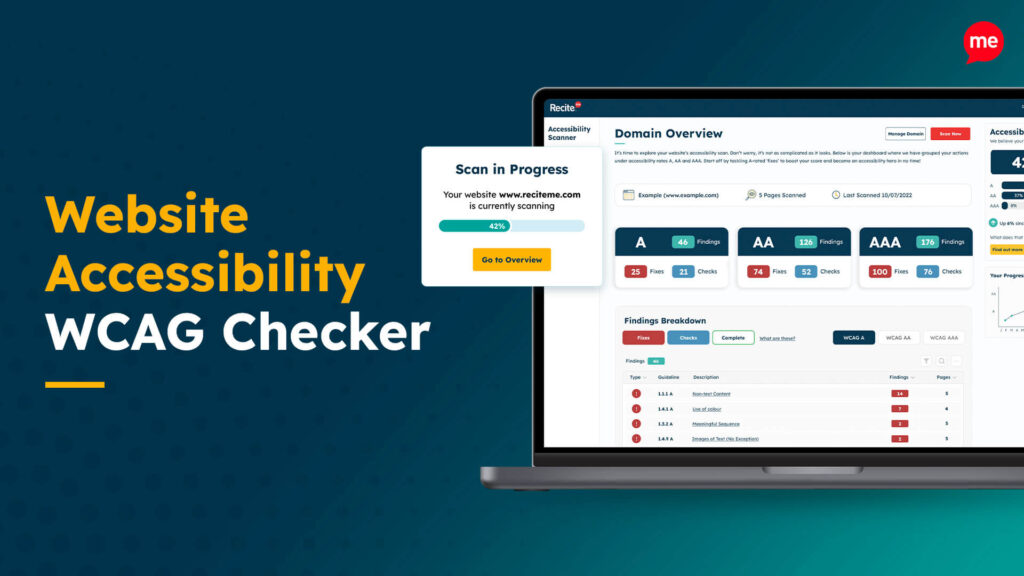
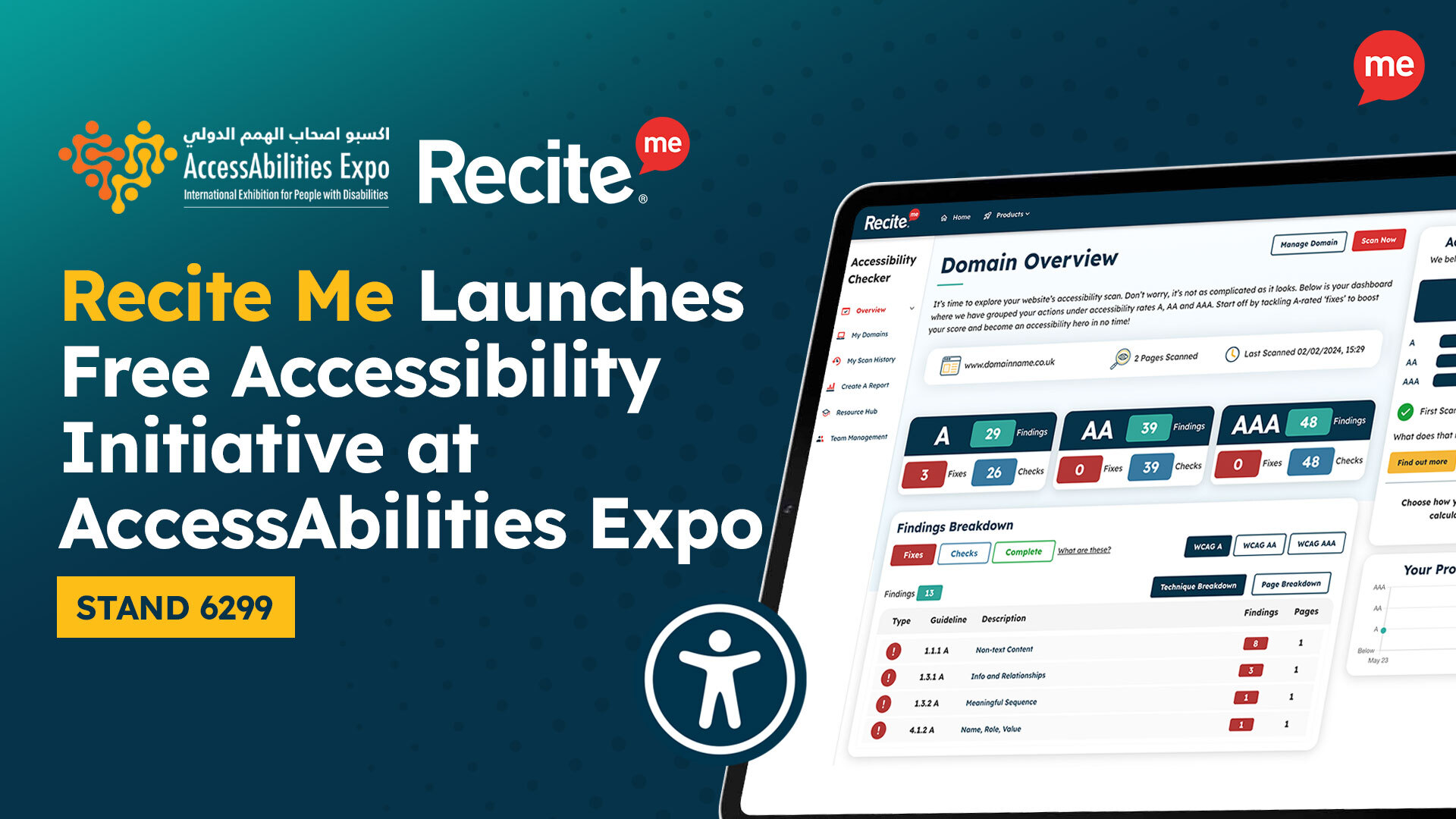
Run a scan to identify WCAG issues on your website's homepage. Then, use our recommended changes to achieve compliance with the latest accessibility standard.
In the UK, public sector organisations are legally required to make their websites and digital services accessible. Under the Public Sector Bodies Accessibility Regulations 2018, public sector websites must meet WCAG 2.2 accessibility standards.
The Government Digital Service (GDS) is now actively auditing public sector websites to ensure compliance with WCAG 2.2. For many teams, this assessment can feel daunting. Not sure what to expect?
This guide explains everything organisations need to know to prepare for a successful GDS assessment.
Understanding the basics of Government Digital Services (GDS) assessments
A GDS assessment is a structured review of a public sector website or digital service against accessibility standards defined by WCAG 2.2. First, it’s essential to understand the basics, including the legal framework and scope of GDS enforcement.
What legislation does the GDS use to enforce compliance?
GDS enforces accessibility compliance using the Public Sector Bodies Accessibility Regulations 2018. These regulations require public sector websites and mobile applications to meet the Web Content Accessibility Guidelines (WCAG) 2.2 Level AA as a minimum. WCAG provides the gold standard for digital accessibility, and includes specific “success criteria” that websites must reach to achieve compliance.
Failure to meet Public Sector Bodies Accessibility Regulations can have disastrous consequences for your organisation, including legal action and damaged credibility.
Which websites must comply with GDS auditing in the UK?
Any website or digital service operated by a public sector organisation must comply. This includes, but is not limited to:
Central government departments and agencies
Local authorities and councils
NHS organisations
Educational institutions
Police and emergency services
Publicly funded organisations
How long do organisations have to become compliant?
If your website is found to be non-compliant during a GDS audit, your organisation will have 12 weeks to address the accessibility issues. After this, a retest will be conducted to confirm whether your site now meets the required standards.
Digital Accessibility and Inclusion Toolkit
Our 40-page Digital Accessibility & Inclusion Toolkit helps businesses break down online barriers and make a real impact. It offers practical advice on all aspects of digital accessibility, from writing an accessibility statement to accessible website tips and inclusive hiring.
What are the most common reasons for failing a GDS assessment?
If your website has failed a GDS assessment, the problem likely stems from a well-known accessibility issue. Fortunately, these are relatively simple to fix. Below are some common accessibility issues flagged during audits, along with recommended fixes.
Poor colour contrast
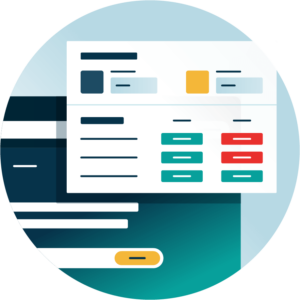
Poor colour contrast between your website text and its background makes it difficult for users with visual impairments to read. To comply with WCAG 2.2, you need to meet a minimum contrast ratio of 4.5:1 for normal-sized text and 3:1 for large text.
Recommended fixes include:
Use automated colour checker tools to quickly test contrast ratios across your site
Update your website colour palette to WCAG guidelines
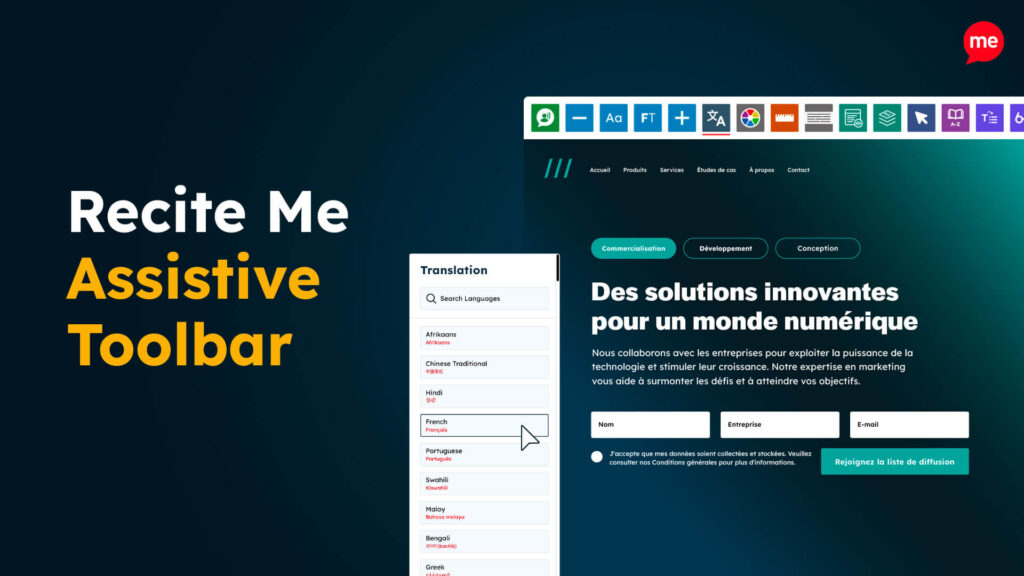
Implement an assistive toolbar to allow visitors to adjust the colour scheme to their needs
Missing alternative text for images
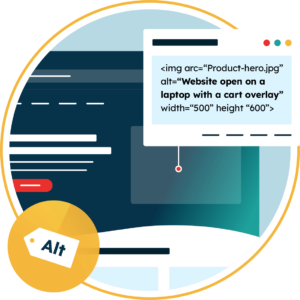
Alternative text, also known as “alt text”, provides a textual description of images on your website. This allows them to be “read” by screen readers, so that visually impaired users can still understand the content. If alt text is missing or incorrect, this group will not be able to understand the meaning of visual content on your site. Just keep in mind that not all images require alt text, as purely decorative images should be ignored by assistive tech.
Recommended fixes include:
Add meaningful alt text to all informative images
Use empty alt attributes (alt=””) for purely decorative images
Ensure charts and infographics have text equivalents
Missing form input labels
Website forms without accurate labels are a major barrier for people who use assistive technologies. Placeholder text alone is not sufficient, as it disappears when users begin typing. Every form field must have a clear and semantically correct label that describes its purpose.
Recommended fixes include:
Use <label> elements correctly linked to form inputs
Ensure labels remain visible at all times
Provide clear instructions and error messages
Empty links & buttons
Empty links or buttons occur when elements contain no alternative text to clarify their destination or purpose. For example, using an icon as a hyperlink without a text alternative would be an empty link. It’s difficult for screen reader users to understand the purpose of empty controls, which can be very frustrating.
Recommended fixes include:
Ensure all links and buttons have meaningful text
Add accessible names to icon-only buttons using aria-labels
Avoid relying solely on visual cues
Test interactive elements with a screen reader
Poor keyboard navigation
Many users rely entirely on a keyboard to navigate websites. Poor keyboard accessibility prevents users from accessing content, completing forms, and performing other essential tasks. Common issues include missing focus indicators, incorrect tab order, and elements that cannot be activated via keyboard.
Recommended fixes include:
Ensure all interactive elements are keyboard accessible
Maintain a logical tab order
Provide visible focus states for all relevant elements
Test keyboard navigation using the tab, arrow and enter keys
Tips and tricks to get your public sector website compliant with the GDS
Achieving accessibility compliance can’t be achieved overnight. It requires an ongoing commitment that is embedded in your organisation. The following accessibility best practices can help you prepare for GDS assessments – and ensure your website is accessible in the long run.
Run an accessibility audit of your website
Accessibility audits identify relevant issues across your website and prioritise them in terms of their impact and severity. Automated accessibility tools like our accessibility checker make it quick and easy to locate the most common issues. However, you should aim to follow up with a manual, human review to ensure nothing has been missed.
By conducting regular audits, you can catch accessibility issues quickly. That way, you won’t be caught out during a formal GDS assessment.
Use an accessibility checklist for manual reviews
Accessibility checklists provide a practical way for content editors and web developers to review webpages. Although digital auditing tools offer valuable benefits, manual checks are also essential to ensure real-world accessibility.
Checklists should cover headings and content structure, link text clarity, form usability, keyboard navigation, media captions and transcripts, and plenty more.
Make necessary changes to address accessibility errors
Once issues are identified, remediation should be prioritised based on user impact and legal risk. You should also aim to focus on high-traffic pages, such as your homepage and contact page. Fixes should be tested thoroughly to ensure they don’t introduce further issues.
Provide accessibility training to key website contributors
Accessibility training ensures that everyone involved in maintaining your organisation’s website understands accessibility requirements and best practices.
This can include content editors, UX designers, web developers, marketing executives and other relevant managers. Embedding accessibility knowledge into your organisation prevents future accessibility violations on your site.
What are the benefits of providing accessible public sector websites
While legal compliance is a key driver, accessible websites offer many additional benefits, including:
Improving usability for all users, not just those with disabilities
Increasing reach and engagement with public services
Reducing support requests and complaints
Enhancing organisational reputation and trust
Improving SEO and performance
At its core, accessibility ensures that vital public services are inclusive and equitable for all internet users, regardless of their abilities.
Get a Free Accessibility Check of your Website
Run a scan to identify WCAG issues on your website's homepage. Then, use our recommended changes to achieve compliance with the latest accessibility standard.
Make sure your website is GDS-compliant before it’s too late
GDS assessments are becoming more frequent and more rigorous as accessibility expectations evolve to WCAG 2.2. For UK public sector organisations, preparation is essential. This ensures you can identify and resolve compliance issues well in advance. Beyond this, you’ll also deliver digital services that work for everyone.
By understanding the legislation, addressing common accessibility failures, and adopting best practices, your organisation stands to pass GDS assessments with ease. Remember, you can download a free website accessibility audit here, or contact our team for more details.
GDS assessment FAQs
Looking for a recap or quick summary? Here are a few of our most frequently asked questions to help you get to grips with the essentials:
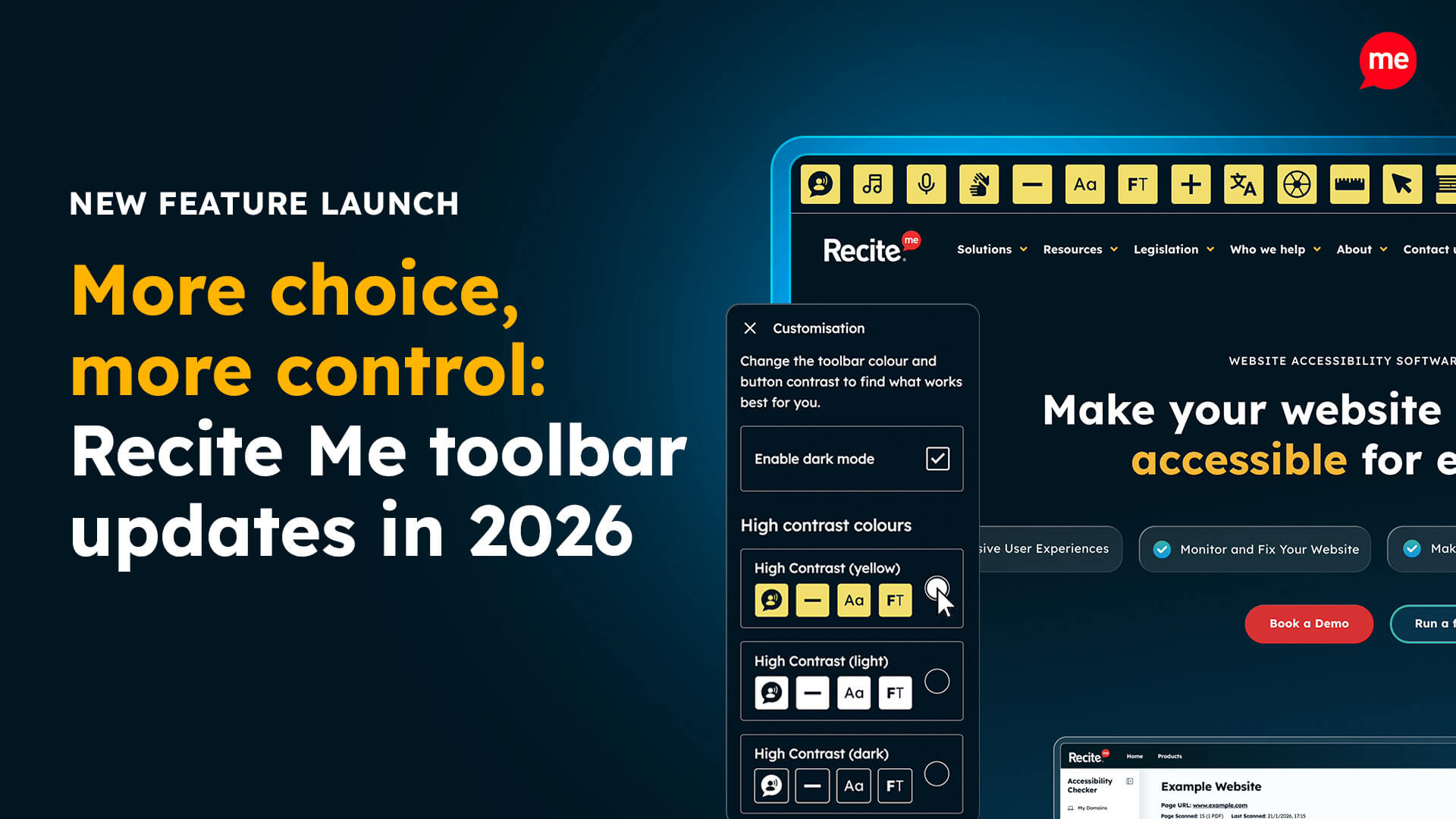
Throughout 2026, we’ve continued to develop the Recite Me Assistive Toolbar to give people more choice over their online experience. With five new features and...
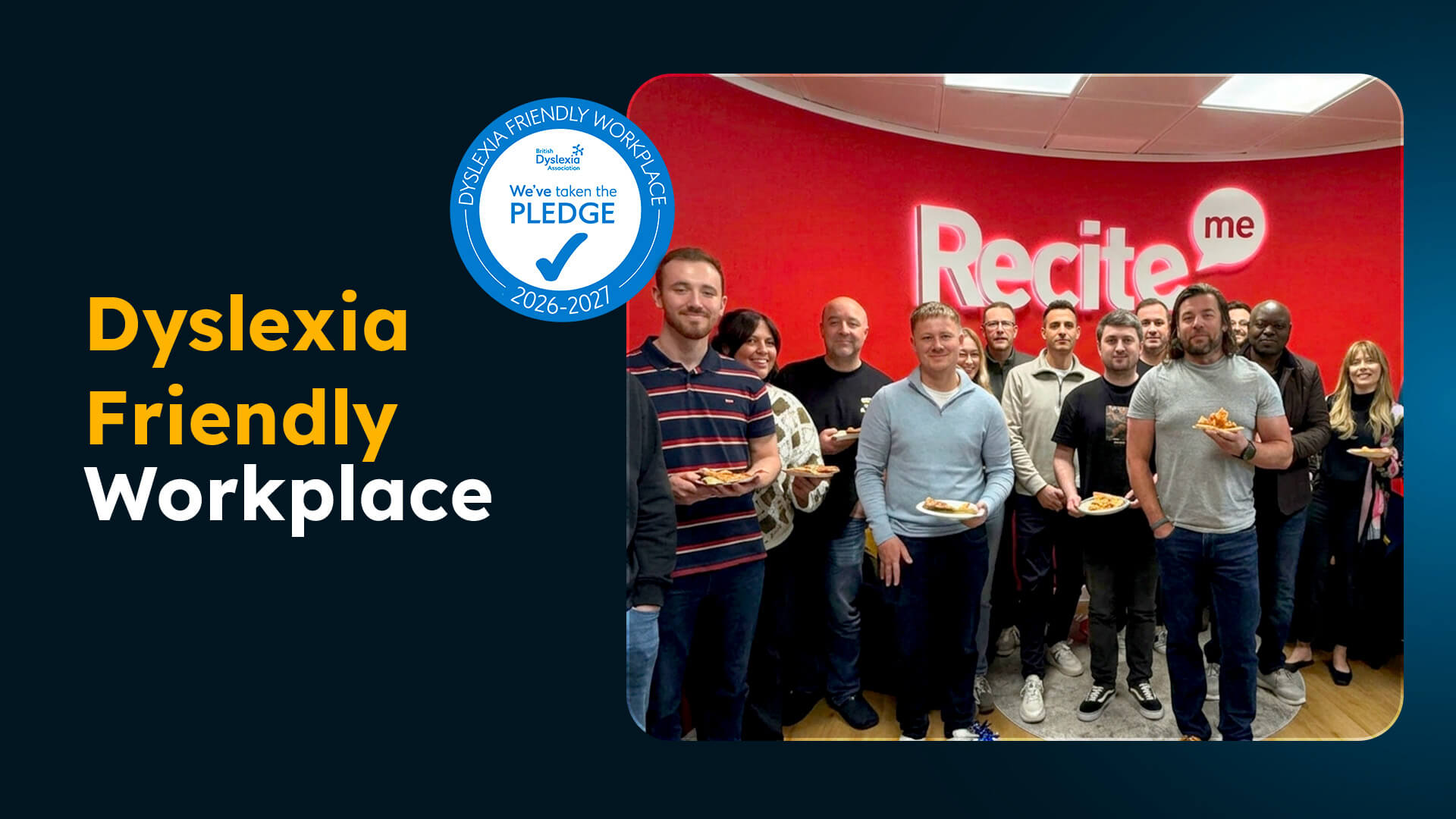
This Dyslexia Awareness Week, Recite Me is proud to announce that we have taken the British Dyslexia Association’s Dyslexia Friendly Workplace Pledge....